
Everyday account care
People can update identity details, credentials, recovery information, and MFA from one place.
A mobile identity and incident-response product that helps people understand a security event and take the right next step.
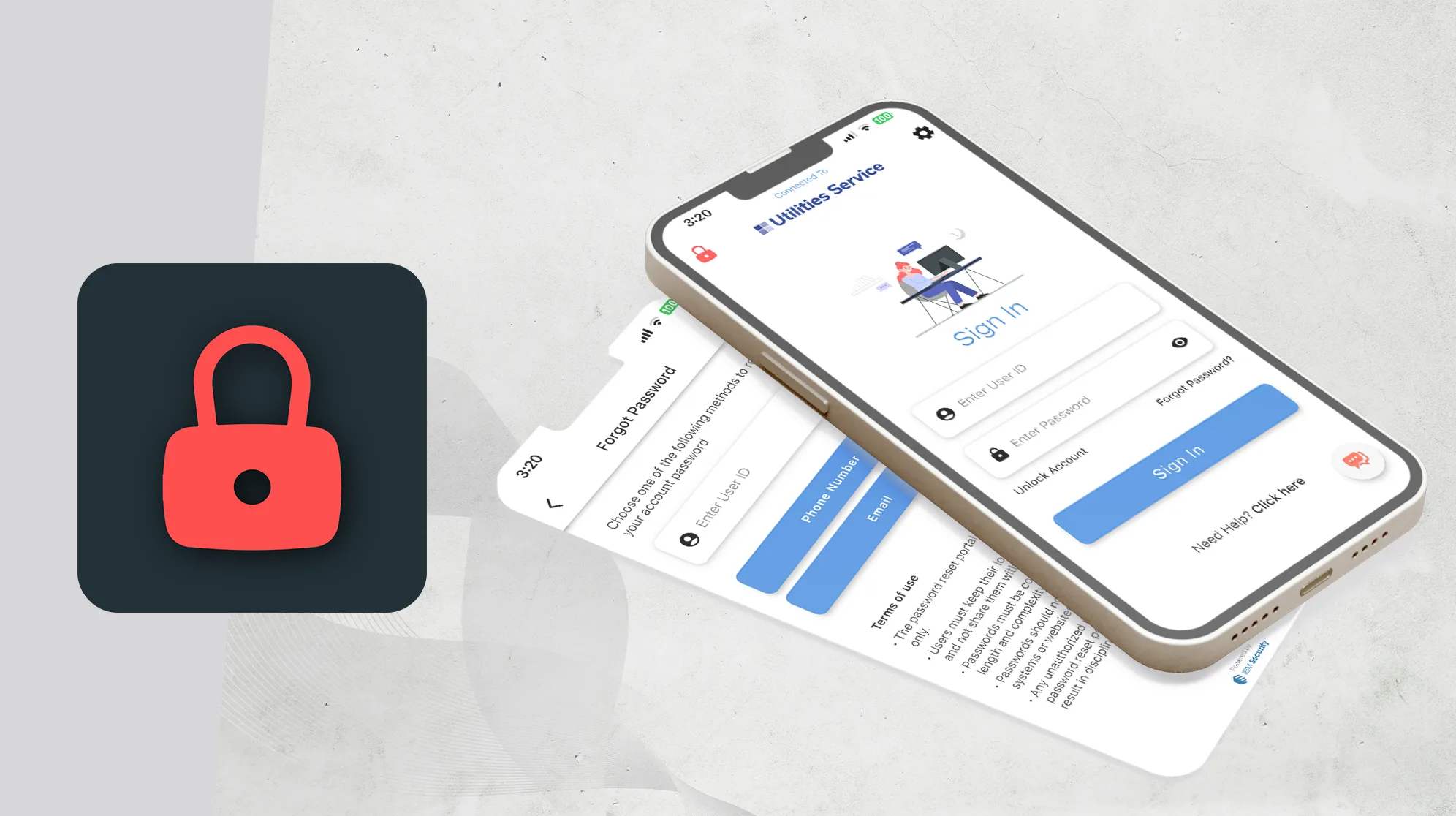
What we made, why it mattered, and how it came together.
MYID Self Verify brings identity self-service, suspicious-activity response, notifications, risk information, MFA, and security learning into one organization-aware mobile app.
The product is built for moments when clarity matters. A person can receive an alert, review the available activity details, decide whether the activity was theirs, and then close the incident or protect the account by ending sessions and changing the password.
The same experience adapts to different organization settings and sign-in methods, so people can manage their account without needing to know how those services are connected.
People can update identity details, credentials, recovery information, and MFA from one place.
Risk, password health, device context, recent activity, and optional response tools stay connected.
An alert moves from understandable evidence to a clear decision and the right follow-up action.
Branding, sign-in, menus, and available actions change with the organization's setup.
An incident screen must show enough detail for a person to decide without burying them in security tooling. Time, activity, source, destination, network, and location information need a clear reading order.
The app also has to adapt to each organization's sign-in, password, recovery, MFA, and incident tools while still feeling like one product.
Some actions can reset credentials, end sessions, or isolate a device. Their consequences must be clear before a person agrees to them.
What we had to balance
Urgency versus enough context to decide
Enterprise complexity versus mobile self-service
Organization differences versus a familiar experience
Faster response versus informed consent
Useful incident detail versus personal-data protection
Our approach
Manage ID handles everyday identity care. Protect ID brings together risk and response. Alerts take urgent activity straight into a focused review flow.
Critical moments are written as a sequence of understandable decisions: what happened, what details are available, what each choice does, and what comes next. The technical setup stays out of the way.
People who need to sign in, maintain identity details, manage MFA, and respond to account alerts.
Users who need clear evidence, a simple decision, and guided protection under time pressure.
Teams that need a person's response to connect with the wider incident process.
Teams supporting different sign-in, directory, MFA, password, and organization settings.
Branding, sign-in, menus, password behavior, and available identity actions load from the organization's setup.
The app presents the password, company sign-in, OTP, recovery, or optional biometric path available to that person.
The home screen brings notifications, password status, MFA, identity care, protection, and learning into one clear view.
Remote and local notifications keep urgent account or incident state available when the app is reopened.
The warning view shows the activity, time, source, destination, network, location, and deeper context when available.
A confirmed activity can be closed. A denied activity can end active sessions and lead directly to a password change.
Manage ID and Protect ID connect account details, password, recovery, MFA, risk, devices, and learning.
Automatic response can be enabled only after the user sees what it may do and agrees to those consequences.
Each feature supports the wider experience instead of standing on its own.
Organization settings control sign-in, branding, menus, password rules, and the identity actions that are available.
An alert connects the user's decision to the incident details and the correct follow-up action.
Routine identity work is grouped away from urgent incident response.
Protection brings together recent activity, account posture, device context, and response choices.
Remote alerts, local presentation, saved alert details, and the in-app notification list point back to the same response flow.
Clear color roles keep text, actions, alerts, fields, icons, and loading easy to read in both themes.
Key decisions
DecisionSave incident and account-lock details when a notification arrives.
ReasonA serious alert should still be there after the app is backgrounded or reopened.
DecisionPlace the available activity details before the confirm and deny actions.
ReasonUrgency is not enough. People need a basis for the decision.
DecisionConnect a denied activity to session ending and password recovery.
ReasonThe response should protect the account, not stop at a warning message.
DecisionRequire confirmation and accessible terms before automatic protection is enabled.
ReasonActions that can reset credentials or isolate devices need informed agreement.
DecisionOffer device biometrics as a convenient return path after the account is set up.
ReasonIt can reduce friction without becoming the only way back into the account.
DecisionPresent sign in, unlock, update, verify, and manage MFA as familiar tasks.
ReasonPeople should not need to know how the organization connects its account services.
Reading order
The incident screen starts with a clear question, then organizes activity, time, source, destination, network, and location into labelled blocks before any decision is requested.
Adaptive home
Sign-in type, password status, notifications, MFA support, and organization settings decide which cards and alerts appear. The home screen stays familiar while irrelevant actions stay out of the way.
Color in daily use
Blue leads actions on white, while gold leads actions on charcoal. Text, icons, fields, dividers, tips, and loading each have their own color.
Guidance
Illustrated motion helps with biometrics, warnings, notifications, management, protection, and empty screens. Every important action still has a clear title and label.
Shared mobile foundation
The app brings organization settings, saved account details, notifications, personal preferences, sign-in services, and incident actions into one mobile experience.
Identity connections
Sign-in, password, unlock, MFA, profile, incident, and session actions connect through the organization's setup while the app keeps the tasks familiar.
Incident actions
Deny can end sessions, record the response, and open password recovery. Confirm can close the incident and record the answer. Feedback and navigation follow the result.
Keeping alerts in sync
Incoming alerts save the relevant details, refresh the visible history, and open the right response path when the user is signed in.
Clear decisions
Confirm, deny, password recovery, session ending, and automatic response use distinct wording and follow-up so a person can understand the consequence before continuing.
Privacy
Names, devices, network addresses, locations, incident identifiers, and organization settings are sensitive. Public case-study media uses redacted or fictional examples.
Accessibility
Headings, labels, icon-plus-text detail rows, flexible layouts, and light and dark themes make the core flow easier to scan and understand.
Continuity
Incident and account-lock details are saved before navigation so the home screen can restore the right path when the user returns.
Screens and design details from the project, with a short note about each view.
The dashboard brings notifications, password status, MFA, identity care, protection, and learning into one prioritized home.
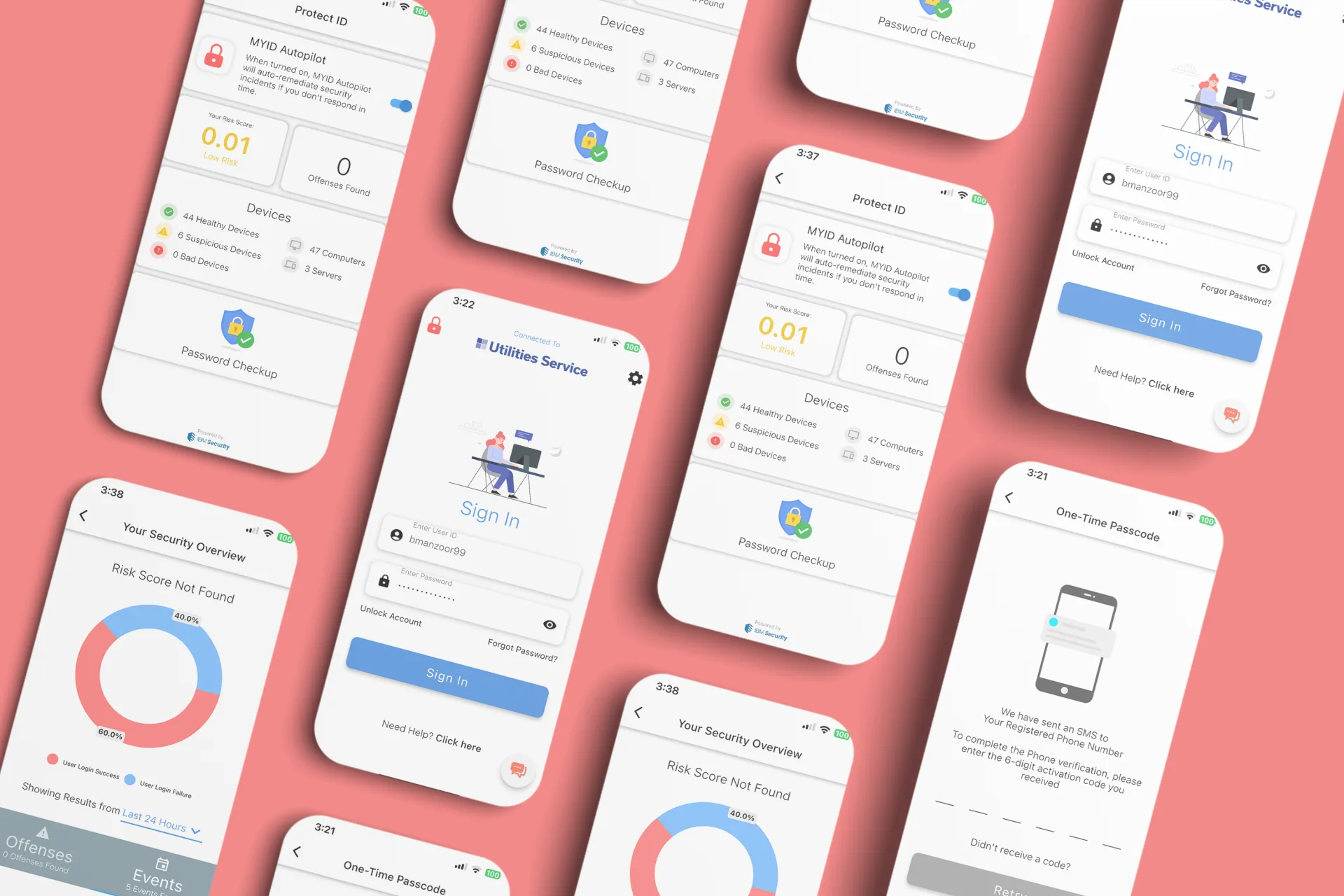
The incident flow asks a clear question, then presents the available activity details before any action.
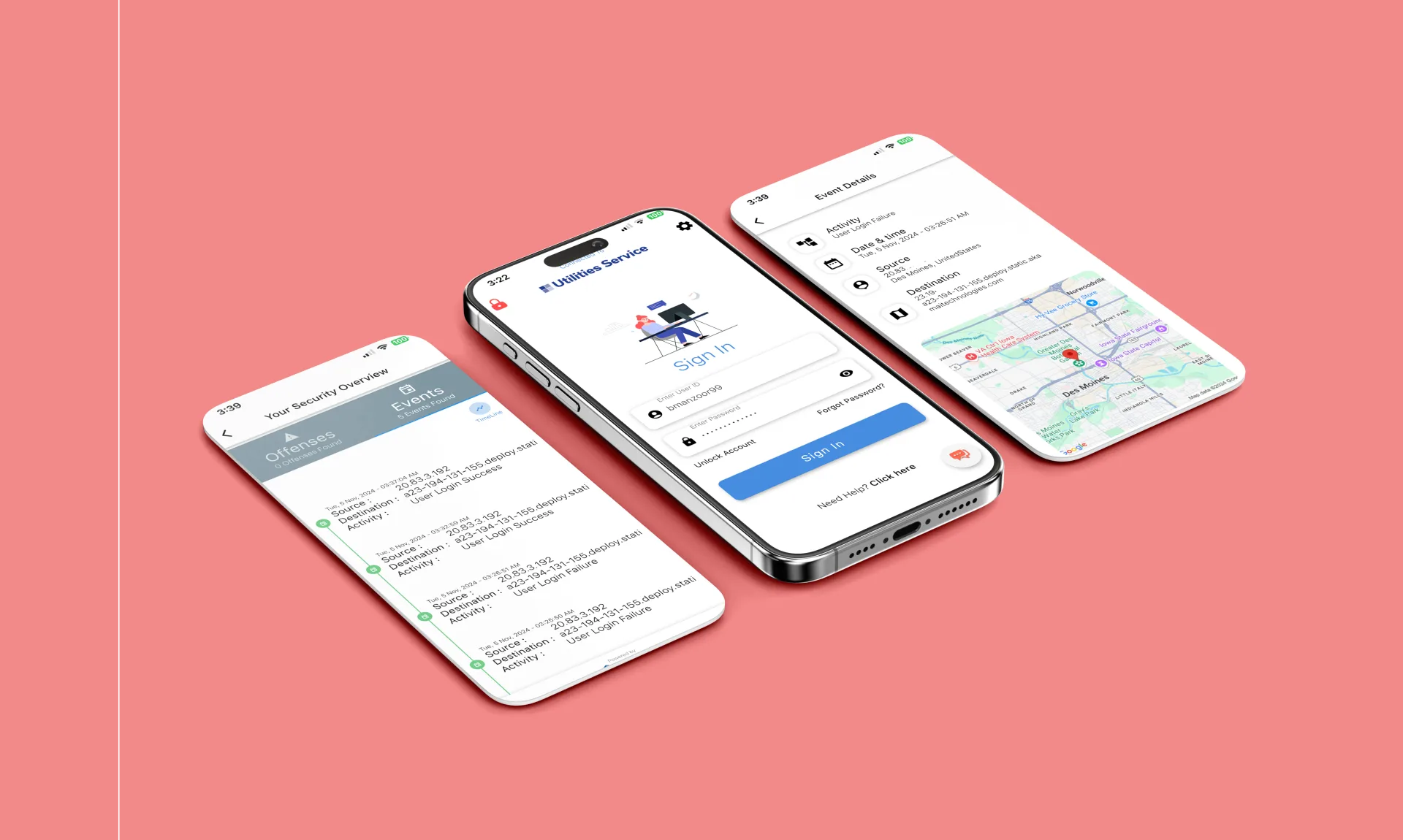
Confirm, deny, session ending, password recovery, risk, and optional automatic response connect the user's choice to the wider security workflow.
MYID brings account care, notifications, incident evidence, response, password recovery, MFA, risk, learning, biometrics, and optional automatic protection into one mobile product.
Its clearest value is the flow. An alert can reach the device, remain available after the app moves to the background, open a clear decision, and connect the person's answer to the right account action.
What we delivered
Start a project
Share the product, the current stage, and the support you need. We will reply with practical next steps.
Start a project