
Access
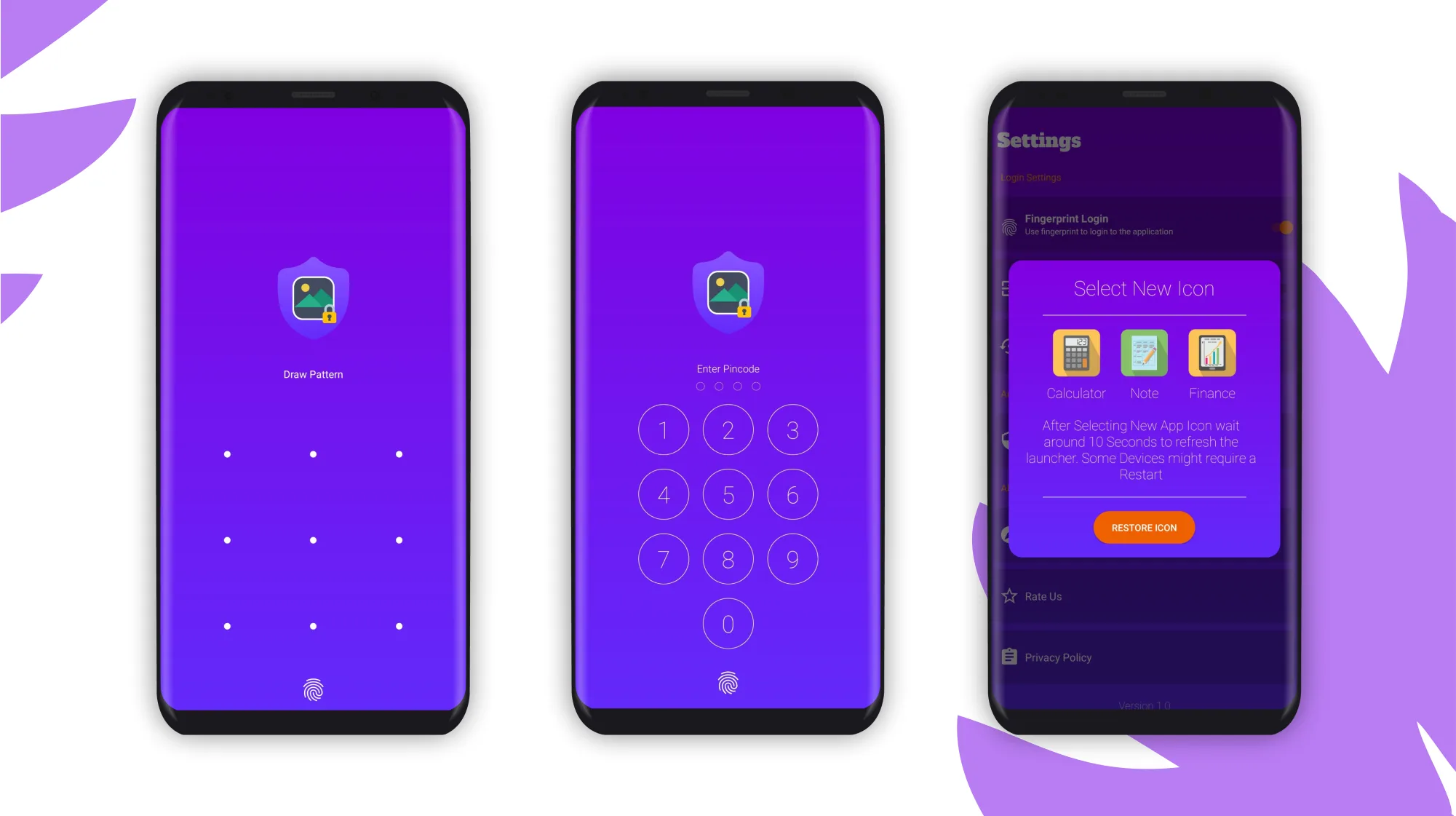
People can use a pattern, PIN, or fingerprint where supported.
A private gallery that feels calm, familiar, and easy to understand.
What we made, why it mattered, and how it came together.
Vault gives people a separate place for selected photos and videos. It includes PIN and pattern setup, fingerprint access, gallery tools, settings, and optional disguised app icons.
We kept the protection steps clear, then used familiar gallery patterns once the user was inside.
People can use a pattern, PIN, or fingerprint where supported.
Browsing and selecting media works like a regular photo app.
The active access and appearance choices remain visible.
Optional icons offer a less obvious appearance on the device.
People need to understand how they will enter the app, where their media is stored, and which settings are active.
At the same time, the experience should remain discreet and as familiar as the gallery they already know.
What we had to balance
Clear protection and discreet appearance
Familiar gallery actions and a private boundary
Fast fingerprint access and a clear fallback
Personalization and visible current settings
Our approach
Setup explains the selected access method and asks for confirmation before saving it. Fingerprint access is an option, not the only way back in.
Inside the vault, familiar grids, selection, and browsing reduce the learning curve.
Want selected photos and videos outside the main gallery.
Need more control over access and the app's visible appearance.
Expect media browsing and selection to work in a familiar way.
Set a pattern or PIN with clear instructions.
Repeat the credential before it is saved.
Enable faster entry where the device supports it.
A clear transition shows that the private gallery is open.
Choose photos and videos and understand where they are going.
Use familiar gallery controls inside the private space.
Review access and choose an optional app icon.
Each feature supports the wider experience instead of standing on its own.
Creation, confirmation, and error states are clearly separated.
Biometric entry adds convenience while keeping the main credential available.
Common media patterns make browsing and selection easy to learn.
Access and appearance choices show the current state before a change is applied.
Key decisions
DecisionUse distinct screens for creation, confirmation, and errors.
ReasonPeople should know whether their access method was saved correctly.
DecisionDo not make fingerprint access the only entry route.
ReasonFingerprint sensors can fail or become unavailable.
DecisionKeep browsing and selection close to a standard photo app.
ReasonPrivacy should not make everyday media tasks harder.
Access
Credential screens remove distractions and give strong feedback for each step.
Gallery
Media grids and selection keep the rhythm people already understand from photo apps.
Discretion
Alternate icons are shown as clear choices with a preview and selected state.
States
The design separates setup, locked, unlocked, fingerprint, fallback, and settings states so each screen has a clear purpose.
Trust
The interface shows the active access method, where imported media will go, and how to use the fallback when fingerprint entry is unavailable.
Screens and design details from the project, with a short note about each view.
The full flow moves from access setup to fingerprint entry, gallery organization, settings, and app icon choices.
Vault combines clear access setup, optional fingerprint entry, familiar gallery controls, and discreet appearance choices in one calm mobile experience.
What we delivered
Start a project
Share the product, the current stage, and the support you need. We will reply with practical next steps.
Start a project